Define a protein binder using a protein or peptide target structure. The GFP example documents the submitted inputs and final operation status.
The target is green fluorescent protein from PDB 1GFL.
ProcedureSelect Protein-Anything under Design Protocol. In this example GFP is the target, and the new molecule will be a protein binder.
Download 1GFL.pdb from RCSB PDB. Under Protein Structure, select Click to edit, then Upload File(s) and choose the downloaded file.
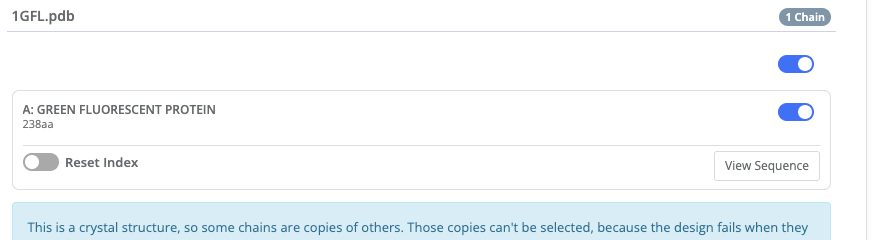
After upload, scroll below the structure viewer to the chain list. Genophore shows one selectable GFP chain from this crystal structure. Leave A: GREEN FLUORESCENT PROTEIN selected.
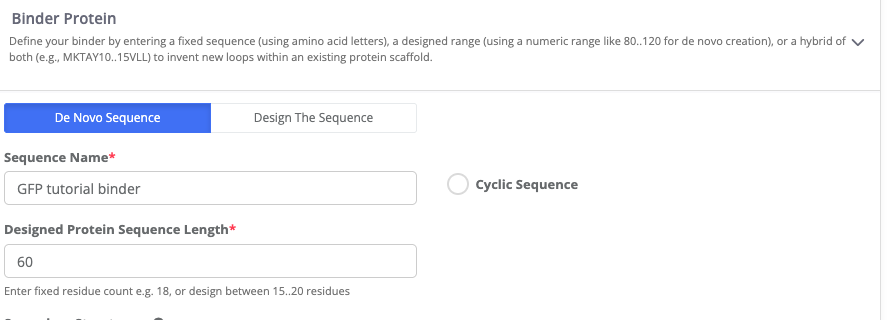
Expand Binder Protein and select De Novo Sequence. Enter GFP tutorial binder as the sequence name and 60 as the length. Leave Cyclic Sequence unchecked for this linear example. The 60-residue length is an example input.
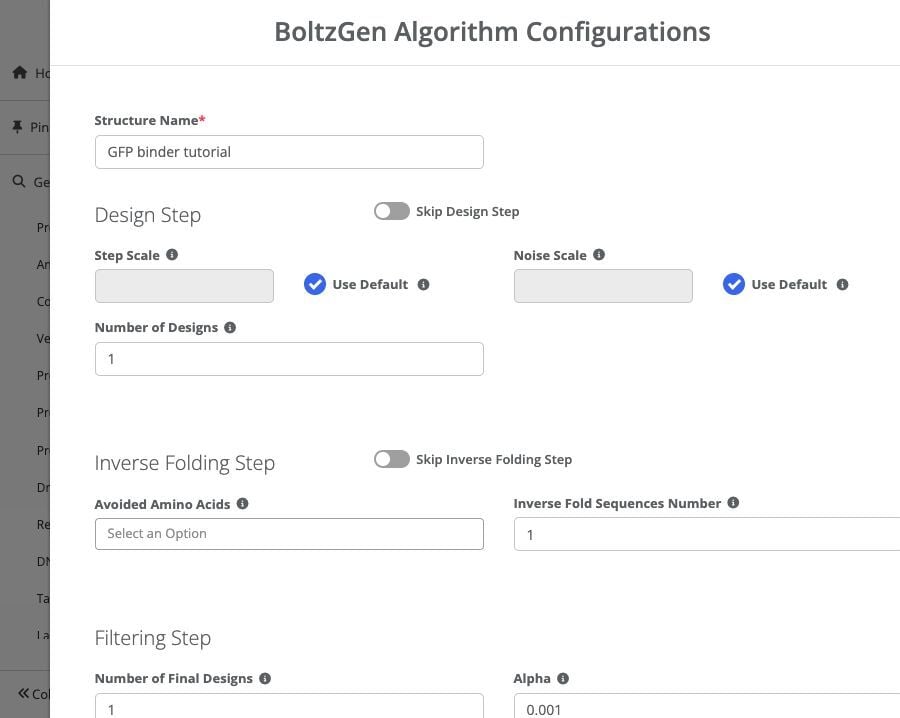
Select Start Generative Design to open the configuration window. For this small example, enter GFP binder tutorial as the structure name. Set Number of Designs, Inverse Fold Sequences Number and Number of Final Designs to 1. Keep the other defaults. Select Start Generative Design again.
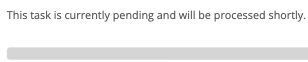
Read the estimate in Confirm Credits Usage and select Start Operation when ready. This example showed an estimate of 3.86 credits. In Structures Generative Design Operations, open the ID beside the job name. The Results tab initially shows the queued state.
Open the operation’s Results tab. In this example, Genophore reported Task failed after 8 minutes 53 seconds. The page gave no further cause and returned no candidate structure.
Use Operation Inputs to check the saved target, sequence name, protocol and design counts. If you need support, include the operation ID and the displayed error. Review a new estimate before starting another run.
All BoltzGen protocolsCover illustration from experimental PDB coordinates: 1GFL.